
Updated: 2026-03-07

Trading Journal Excel: What Spreadsheets Can't Tell You About Your Trading

When traders first decide to start keeping a journal, Excel is the obvious first choice. It's already on your computer. It's free. It's infinitely customizable. You can format it however you want, add any columns you choose, and build dashboards with pivot tables and conditional formatting. For traders logging their first 50 to 100 trades, Excel works well enough. The problem surfaces later. According to Barber and Odean (Journal of Finance, 2000), the most active retail traders underperform passive investors by an average of 6.5 percent per year — not because they lack discipline or intelligence, but because they cannot see the behavioral patterns driving their worst decisions. Excel shows you what happened on each trade. It cannot show you why — specifically, how your decision quality degrades after consecutive losses, how your win rate shifts across different times of day, or how frequently a revenge sequence follows a stop-out. Those patterns require statistical analysis across 200 or more trades with behavioral tagging. Excel can theoretically do this, but the practical complexity puts it out of reach for most traders. This guide covers exactly what a well-built Excel trading journal looks like, what it cannot tell you, and the signals that indicate you have outgrown it.
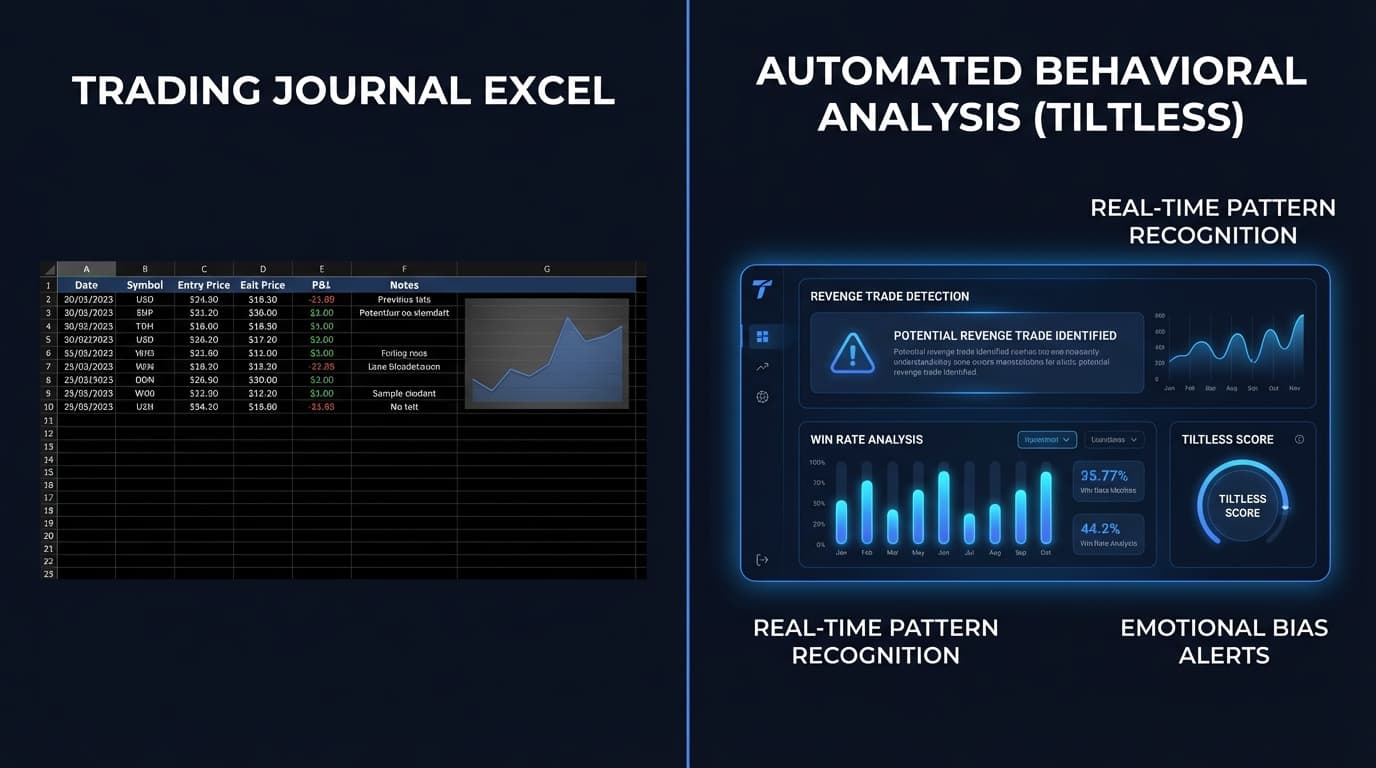
Trading Journal Excel: What Spreadsheets Can't Tell You About Your Trading

The 5 Columns Every Excel Trading Journal Needs

If you are going to build an Excel trading journal, build it correctly. The most common mistake is logging only objective trade data — entry price, exit price, P&L — without the behavioral context that makes pattern analysis possible. A properly structured Excel journal needs at minimum five categories of columns.

First: trade identification. Date, time, instrument, and direction (long or short). This sounds basic but many traders omit time, which eliminates time-of-day analysis entirely.

Second: price and size data. Entry price, exit price, position size, stop level, and target level. From these you can calculate actual R-multiple, planned R-multiple, and slippage. The difference between your planned and actual R-multiple is one of the most informative metrics you can track — consistently negative differences suggest execution problems, not setup problems.

Third: setup classification tag. A short label — 'breakout,' 'pullback,' 'gap-fill,' 'news-reaction' — that tells you what pattern triggered entry. Without this, you cannot compare setup performance. All trades look the same in a P&L column.

Fourth: plan compliance flag. A binary yes/no field: was this trade in your written plan before the session started? This single column is the highest-value behavioral data point in any journal. Traders who separate plan-compliant trades from impulse trades almost universally find that their impulse trades underperform significantly.

Fifth: emotional state tag. A simple categorical label — 'neutral,' 'elevated,' 'tilt,' 'fatigue' — entered at the time of the trade or immediately post-session. This is the hardest field to fill in honestly, and the most revealing when you do.

  • Trade identification: date, time, instrument, direction — time is non-negotiable for session analysis
  • Price and size: entry, exit, position size, stop, target — calculate planned vs actual R-multiple
  • Setup tag: a short label for the pattern that triggered entry (breakout, pullback, etc.)
  • Plan compliance: binary yes/no — was this trade in your pre-session plan?
  • Emotional state tag: neutral / elevated / tilt / fatigue — entered honestly at trade time

The 3 Things Excel Cannot Tell You

Even a well-structured Excel journal hits hard limits when you try to extract behavioral insights from your data. These three patterns are among the most important drivers of trading performance — and none of them surface in a spreadsheet without substantial statistical infrastructure.

First: your post-loss win rate. After a losing trade, does your win rate on the next trade change? Most traders have a strong intuition that they trade worse after a loss — but intuition is not data. Measuring post-loss win rate requires linking sequential trades, calculating conditional probabilities, and testing whether the difference from your baseline win rate is statistically significant. In Excel this requires multiple COUNTIFS formulas, offset logic to identify trade sequences, and a chi-square or Fisher exact test to assess significance. Possible, but not practical for most traders.

Second: session fatigue degradation. Does your performance decline within a session as time passes? Specifically, do your trades in the first hour outperform your trades in the third hour? Answering this requires binning trades by session phase, calculating average R-multiple per bin, and running a regression or Mann-Whitney U test to determine whether the degradation is statistically real or noise. The calculation is not complex in isolation — but building it in Excel for a rolling dataset of 500+ trades, with dynamic session definitions that vary by market and day, is a significant engineering task.

Third: revenge sequence frequency and cost. A revenge sequence is defined as two or more consecutive off-plan trades entered after a loss, typically characterized by increased size and decreased setup quality. Identifying revenge sequences requires tagging each trade for plan compliance, flagging loss events, and then scanning forward to detect clusters of off-plan entries. According to Kahneman and Tversky (1979), losses feel approximately twice as intense as equivalent gains — this asymmetry is what drives revenge trading, and it is one of the most costly behavioral patterns in active trading. ESMA and FCA disclosures consistently show that 74 to 78 percent of retail derivative accounts lose money in any given quarter, a figure that behavioral finance researchers attribute largely to loss-driven decision errors of exactly this type. Excel cannot flag a revenge sequence as it is forming. Automated systems can.

  • Post-loss win rate: requires conditional probability across linked sequential trades — COUNTIFS + chi-square test
  • Session fatigue degradation: requires trade binning by session phase and regression analysis across a rolling dataset
  • Revenge sequence frequency: requires sequential loss detection + off-plan clustering — Excel has no native sequence analysis
  • All three require 200+ trades to reach statistical significance — small samples produce false patterns
  • Building this infrastructure in Excel takes days; maintaining it is a continuous burden

Building a Fisher Exact Test in Excel (And Why It's Harder Than It Looks)

For traders who want to test whether a pattern in their data is statistically real — for example, whether their win rate on breakout setups is genuinely higher than on pullback setups — the correct tool is a Fisher exact test or a Welch t-test, depending on whether you are comparing proportions (win rates) or means (average R-multiples).

The Fisher exact test for win rate comparison requires calculating a 2x2 contingency table: wins and losses for setup A versus wins and losses for setup B. The formula for the p-value involves hypergeometric probability and requires computing factorials for potentially large numbers. In Excel, this is implemented as: =HYPGEOM.DIST(k, n1, K, N, TRUE) where k is observed wins in setup A, n1 is total setup A trades, K is total wins across both setups, and N is total trades. This is feasible for a single comparison, but becomes unwieldy when testing dozens of setup combinations.

The Welch t-test for comparing average R-multiples between two setups uses Excel's =T.TEST(array1, array2, 2, 3) — the third argument specifies a two-tailed test and the fourth specifies unequal variances (Welch variant). This is more accessible than the Fisher exact test but still requires careful data organization: each setup must have its own column array, the arrays must be dynamic (expanding as you add trades), and the output p-value must be compared against a significance threshold of 0.05.

The deeper problem is multiple comparisons. If you test 20 setup combinations at p < 0.05, you expect one false positive by chance alone. Correcting for this requires a Bonferroni correction — divide your significance threshold by the number of comparisons — which requires you to track how many comparisons you are running and adjust dynamically. Most traders who attempt this in Excel either skip the correction (producing false insights) or spend more time maintaining the statistical infrastructure than they spend trading.

None of this is impossible. It is a genuine barrier to the kind of systematic pattern analysis that separates improving traders from stagnating ones.

  • Fisher exact test: =HYPGEOM.DIST(k, n1, K, N, TRUE) — tests win rate differences between setups
  • Welch t-test: =T.TEST(array1, array2, 2, 3) — tests R-multiple differences between setups
  • Both require dynamic named ranges that expand as new trades are added
  • Multiple comparisons correction (Bonferroni) is required when testing many setups — most traders skip it
  • Result: false insights from statistical noise, or hours spent on spreadsheet engineering instead of trading

When to Graduate From Excel to Automated Analysis

Excel is appropriate for traders who are establishing their journaling habit, have fewer than 200 trades logged, and are primarily focused on building the discipline of recording each trade consistently. At that stage, the structure of a good Excel template is more valuable than automated analysis, because the patterns in a 50-trade sample are not statistically meaningful.

Four signals indicate you have outgrown Excel.

The first signal is volume. Once you have 200 or more trades logged, your dataset is large enough for statistical analysis to produce meaningful results. At that point, the bottleneck shifts from data collection to analysis — and Excel's analysis infrastructure is the constraint.

The second signal is setup proliferation. As traders gain experience, they typically develop 4 to 8 distinct setups with different entry criteria. Comparing setup performance in Excel requires maintaining separate arrays per setup, updating formulas manually as new setups are added, and re-running comparative analysis after each new trade batch. This work compounds quickly.

The third signal is manual tagging fatigue. If you find yourself behind on emotional state tags, or if your plan compliance field has gaps because filling it in felt tedious, the friction is producing data quality degradation. Missing behavioral tags in 20 percent of trades invalidates behavioral analysis entirely — you cannot calculate post-loss win rate if a fifth of your loss events are untagged.

The fourth signal is the behavioral patterns you are missing. If you have had multiple sessions where you know something went wrong — you overtrade after a bad open, you revenge-trade on Fridays, you consistently underperform in the afternoon — but you cannot quantify it or prove it statistically, you are flying blind. That information exists in your trade data. The question is whether your tooling can surface it.

  • 200+ trades logged: dataset is now large enough for statistically meaningful pattern analysis
  • 4+ distinct setups: comparative setup analysis in Excel requires too much manual infrastructure
  • Behavioral tagging gaps: friction-induced missing data invalidates behavioral analysis
  • Unquantified bad-session patterns: you sense the pattern but cannot prove it — the data exists, the tooling does not
  • Time cost: if Excel maintenance takes more than 30 minutes per week, the ROI has inverted

How to Migrate Your Excel Trade History to Tiltless

If you have an existing Excel trading journal, your historical data does not need to be abandoned when you move to an automated system. Tiltless accepts CSV imports that cover trade history from any source, including Excel exports.

The migration process has three steps. First, export your Excel data as a CSV. In Excel, use File then Save As then CSV (Comma delimited). Your export should include at minimum: date, instrument, direction, entry price, exit price, quantity, and any setup or behavioral tags you have already applied.

Second, map your columns in the Tiltless import interface. Tiltless recognizes standard column names automatically — date, symbol, side, entry, exit, qty — and provides a column mapping interface for non-standard names. If your Excel journal uses different column headers (for example 'open price' instead of 'entry'), the mapping step handles this without requiring you to rename your data.

Third, review the import summary. After the CSV upload, Tiltless displays a confirmation showing the number of trades imported, the date range covered, and any rows it could not parse (typically rows with missing price or quantity data). Trades with setup tags in your CSV are imported with those tags preserved — they will appear in your Edge Lab analysis alongside trades imported from live exchange connections.

After the import, the Edge Lab runs on your full historical dataset immediately. Patterns that were invisible in Excel — post-loss performance shifts, time-of-day degradation curves, behavioral correlations — become visible as soon as the analysis completes. Most traders report that their first Edge Lab run surfaces at least one pattern they had suspected but never been able to quantify.

  • Export from Excel: File → Save As → CSV (Comma delimited)
  • Required columns: date, instrument, direction, entry price, exit price, quantity
  • Column mapping: Tiltless handles non-standard headers without manual renaming
  • Existing setup tags are preserved and appear in Edge Lab analysis
  • Edge Lab analysis runs immediately on full import — historical patterns surface in minutes

Related Resources

FAQ

?Is a trading journal in Excel enough?

For early-stage traders logging fewer than 200 trades, Excel is sufficient for building the journaling habit and basic performance tracking. Once your dataset exceeds 200 trades and you want to detect behavioral patterns — post-loss win rate shifts, session fatigue, revenge trade frequency — Excel becomes the bottleneck. The statistical infrastructure required is technically buildable in Excel but impractical to maintain alongside active trading. According to Barber and Odean (Journal of Finance, 2000), the most active retail traders underperform by 6.5 percent per year on average; the traders who improve are the ones who can detect and act on their own behavioral patterns, which requires automated analysis.

?Can I import my Excel trades into Tiltless?

Yes. Tiltless accepts CSV imports from any source including Excel exports. Export your spreadsheet as a CSV file, upload it in the Tiltless import interface, and use the column mapping step to match your column names to the standard Tiltless fields. Any setup tags or behavioral notes you have already entered in Excel are preserved during import. After the import, the Edge Lab runs on your full historical dataset immediately.

?What is the best Excel formula for analyzing trading performance?

For win rate by setup, use COUNTIFS to count wins and total trades per setup tag, then divide. For average R-multiple by setup, use AVERAGEIF. For statistical significance when comparing two setups, use T.TEST(array1, array2, 2, 3) for a Welch t-test on R-multiples, or HYPGEOM.DIST for a Fisher exact test on win rates. The practical limitation is maintaining dynamic ranges as your trade count grows and applying Bonferroni correction when running multiple comparisons — without correction, testing 20 setups at p < 0.05 produces roughly one false positive by chance.

?How many trades do I need before pattern analysis is meaningful?

For basic setup comparison (win rate between two setups), you need at least 30 trades per setup to achieve reasonable statistical power. For behavioral pattern analysis — post-loss win rate, time-of-day degradation, revenge sequence frequency — 200 or more total trades is the practical minimum. Below that threshold, patterns that appear significant are likely noise. This is why automated journaling matters: traders who capture every trade without friction reach statistically meaningful sample sizes faster than traders who manually log selectively.

Your Excel Patterns Are Already in Your Trade Data

Import your CSV trade history into Tiltless and the Edge Lab runs immediately — surfacing post-loss patterns, session fatigue curves, and behavioral correlations that your spreadsheet cannot detect. No card required.

Trading Journal Excel: What Spreadsheets Miss | Tiltless