
Updated: 2026-03-07

TradingView Trading Journal: How to Add Behavioral Analysis to Your Charts

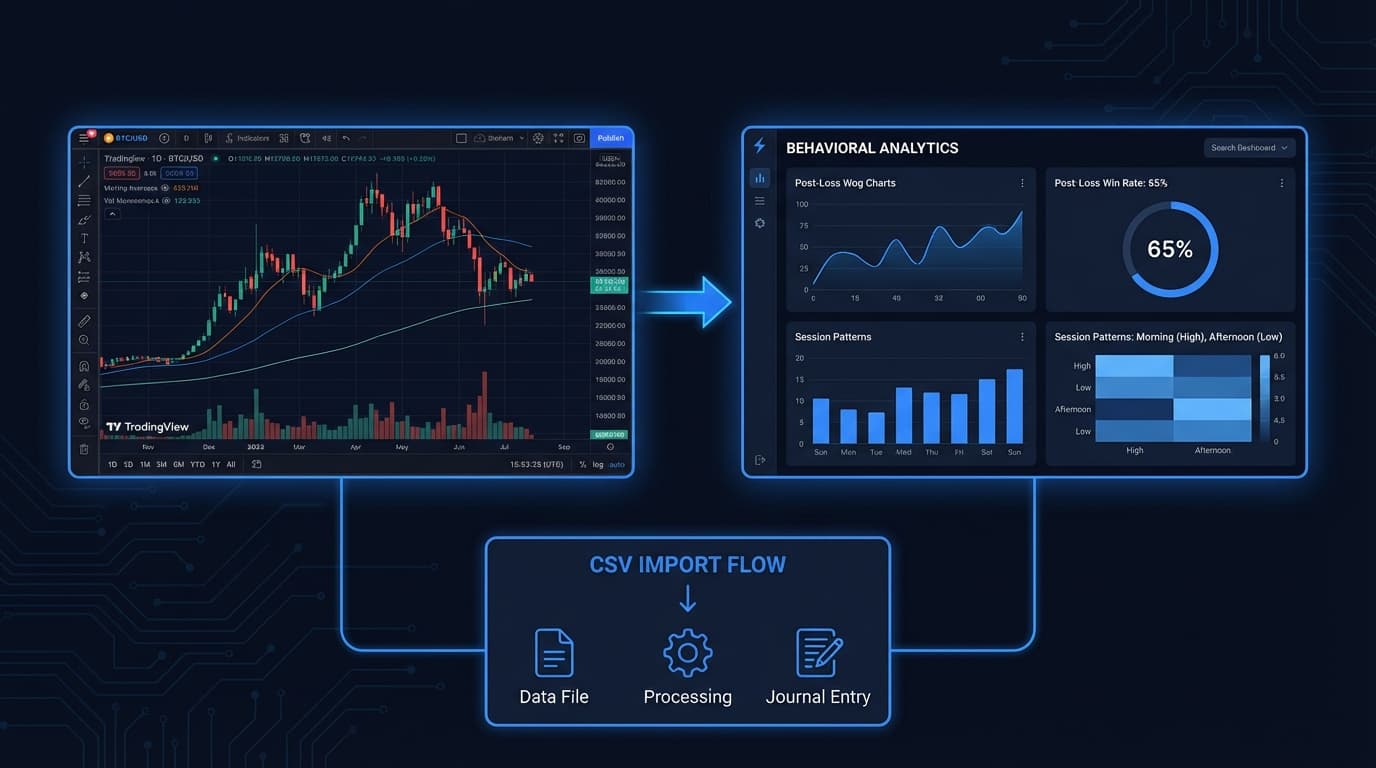
TradingView has over 50 million registered users — which means if you are an active retail trader, there is a reasonable chance you are already using it every day to analyze markets, set alerts, and plan entries. That reach is not accidental. TradingView's charting engine is genuinely the best available to retail traders: clean, fast, multi-timeframe, and packed with indicators. But charting excellence and behavioral analysis are two different things. TradingView can show you where you entered and exited a trade. It cannot show you your post-loss win rate, your revenge sequence frequency, how your execution quality degrades after the second hour of trading, or whether your stated edge has statistical validity. According to Barber and Odean (Journal of Finance, 2000), the most active traders underperformed passive investors by 6.5% per year — and the causes were behavioral, not strategic. The gap between your chart analysis and your actual behavior is exactly where performance leaks. This guide covers what TradingView offers natively, how to export your trade history, and how to import it into Tiltless for the behavioral layer TradingView was never designed to provide.
TradingView Trading Journal: How to Add Behavioral Analysis to Your Charts

Does TradingView Have a Built-In Trading Journal?

TradingView offers several native tools that touch on trade tracking, and it is worth being honest about what each one does and does not do.

Paper Trading is TradingView's built-in simulated trading feature. It lets you place simulated orders directly on the chart and tracks your hypothetical P&L. This is useful for testing setups, but Paper Trading data is chart-centric: you can see your entries and exits on the price action, review basic P&L, and compare entries to the chart narrative. It does not compute win rate by time of day, does not detect behavioral patterns across sessions, and does not flag when your trade frequency or sizing deviates from your historical baseline.

Trade notes and drawing tools let you annotate charts with text, arrows, and shapes. Many traders use these to mark their entries and exits with context. The limitation is that annotations are not queryable — you cannot ask TradingView to show you all trades where you noted 'revenge entry' and compute their average outcome.

Replay mode lets you re-run historical price action and practice entries. It is a legitimate training tool. It is not a trade journal: it does not ingest live fills, does not accumulate data across sessions, and does not produce statistical output.

What TradingView does not offer: behavioral scoring, pattern detection across sessions, post-loss win rate, revenge sequence frequency analysis, time-of-day performance degradation curves, or any form of statistical edge validation. These are not features TradingView is missing by oversight — they are simply outside its purpose. TradingView is a charting and analysis platform, not a behavioral analytics system. The right approach is to use both tools for what each does best.

  • Paper Trading: simulated orders on chart, basic P&L — no behavioral analysis
  • Trade notes: annotation only — not queryable or aggregable across sessions
  • Replay mode: training tool, not a live trade journal
  • No behavioral scoring, pattern detection, or statistical edge validation
  • TradingView is a charting platform — behavioral analysis requires a separate tool

How to Export Your TradingView Trade History

TradingView's Paper Trading account and some connected broker integrations allow CSV export of your trade history. The process is straightforward.

For Paper Trading history: open TradingView and navigate to the Paper Trading tab in the bottom panel. This is the trading terminal that appears when Paper Trading mode is active. Locate the 'Trade History' tab within that panel. Look for an export or download icon — typically a downward arrow or a 'Download as CSV' option in a context menu. Click it to download your trade history as a CSV file.

For broker-connected accounts: if you have connected a supported broker to TradingView (Interactive Brokers, Tradovate, and others), your live fills appear in the same trading panel. The export path is the same: Trade History tab, then export to CSV.

What the exported CSV contains: symbol, trade direction (buy/sell), quantity, entry price, exit price, date and time, commission, and realized P&L. It does not contain behavioral context — that is inferred and scored by Tiltless after import.

Note: if you trade on a separate exchange (Binance, Bybit, Coinbase, tastytrade, and others) and only use TradingView for charting rather than order execution, export your trade history from that exchange directly. Tiltless supports native API connections and CSV imports from over 21 platforms. The TradingView CSV import path described here is specifically for trades executed through TradingView's Paper Trading or broker integration.

  • Open TradingView → Paper Trading panel → Trade History tab
  • Click the export/download icon → Download as CSV
  • For broker-connected accounts: same path in the broker trading panel
  • CSV includes: symbol, direction, quantity, entry/exit price, date, commission, P&L
  • External exchange traders: export from that exchange directly — Tiltless supports 21+ platforms

How to Import TradingView Trades into Tiltless

Importing your TradingView CSV into Tiltless takes under two minutes. The import wizard handles column mapping automatically for TradingView's standard export format.

Step 1: Create a free Tiltless account at tiltless.ai/signup. No credit card is required for the free tier, which supports full CSV import and behavioral analysis.

Step 2: After onboarding, navigate to the Connections page and select 'CSV Import' from the available import options. Tiltless supports CSV imports from TradingView, NinjaTrader, TraderSync, tastytrade, and 17 other platforms.

Step 3: Upload your TradingView CSV. The import wizard will automatically detect the column format. For TradingView's standard export, columns are mapped automatically: symbol, entry and exit datetime, direction, quantity, price, and realized P&L.

Step 4: Review the column mapping on the confirmation screen. If TradingView has changed its export format or you have a custom export, you can remap any column manually from a dropdown.

Step 5: Confirm the import. Tiltless processes the trades, computes your P&L timeline, runs initial behavioral scoring, and populates your Edge Lab with setup-level statistics. Historical data from your CSV is treated identically to live-synced data — all analysis features apply immediately.

Going forward, re-export and re-import from TradingView after each session, or connect a live exchange account for automatic sync that eliminates the manual export step entirely.

  • Sign up free at tiltless.ai/signup — no card required
  • Connections → CSV Import → select TradingView format
  • Upload CSV — column mapping is automatic for TradingView standard export
  • Confirm mapping on review screen — manual remap available if needed
  • All historical trades are scored and analyzed immediately after import
  • Re-import after each session, or connect a live exchange API for automatic sync

What Behavioral Analysis TradingView Cannot Show You

According to the European Securities and Markets Authority (ESMA) and the UK Financial Conduct Authority (FCA), 74–78% of retail CFD accounts lose money in any given reporting period. Across that population, the strategic setups being used are not dramatically different from those used by profitable traders. The gap is behavioral: when traders deviate from their rules, and how decision quality degrades under specific conditions.

TradingView shows you the chart context of each trade. It cannot compute the following.

Post-loss win rate is one of the most diagnostic metrics in behavioral trading analysis. It answers: after a losing trade, what does your win rate look like on the next trade? Most traders assume their win rate is relatively stable across a session. The actual data almost always shows a significant drop in the trade immediately following a loss — the revenge window. Knowing your specific post-loss win rate gives you a quantified reason to pause after a loss rather than immediately re-entering.

Revenge sequence detection identifies chains of consecutive reactive trades — trades placed without a setup rationale, typically after a stop-out. A revenge sequence is defined as two or more off-plan trades placed within 15 minutes of a loss. Tiltless detects these sequences automatically and scores their aggregate cost, so you can see exactly what revenge trading costs you per month in dollar terms.

Time-of-day degradation curves show how your win rate and average R-multiple change across the trading session. Most traders have a performance window — often the first 60 to 90 minutes after market open — where their execution is sharpest. The curve shows where that window ends. For many traders, the data reveals that virtually all their alpha is generated in a 90-minute window and that additional trading hours are net negative.

Session fatigue scoring aggregates behavioral signals — sizing deviations, hold time extensions, re-entry frequency — into a session-level fatigue index. When the index crosses a threshold, Tiltless flags the session and attributes the trades that follow to an elevated behavioral state.

Statistical edge confirmation uses a Fisher exact test on your setup cohorts to determine whether your win rate on any given setup is statistically different from chance. A setup with 12 trades and a 58% win rate may look like an edge. The Fisher test tells you whether that result is statistically significant given sample size, or whether it is consistent with random variation.

  • Post-loss win rate: your win rate on the trade immediately after a loss
  • Revenge sequence detection: chains of off-plan re-entries after a stop-out
  • Time-of-day degradation: where your performance window ends each session
  • Session fatigue scoring: behavioral drift index across the trading session
  • Fisher exact test: statistical edge confirmation on each setup cohort

Setting Up TradingView Alerts and Tiltless for a Complete Trading System

The most effective setup for retail traders who use TradingView is not to replace it — it is to treat TradingView and Tiltless as two layers of a single system, each doing what it is best at.

TradingView handles pre-trade and in-trade functions: market analysis, multi-timeframe chart review, alert creation, watchlist management, and setup identification. Its alert system is particularly strong — price level alerts, indicator condition alerts, and strategy alerts can fire to your phone or email, allowing you to monitor multiple instruments without staring at screens all day.

Tiltless handles post-trade and behavioral functions: trade import, behavioral scoring, pattern detection, edge validation, and AI coaching. The coaching layer reads your recent trade history, identifies your current behavioral pattern, and surfaces a specific constraint to test in the next session — not generic advice, but a rule derived from your actual data.

The practical workflow looks like this. Before the session, review Tiltless's summary from the previous day to identify any behavioral flags — particularly revenge sequences or fatigue signals that ended the prior session poorly. Use that context to set constraints for today: a maximum trade count, a post-loss pause rule, or a hard time cutoff. During the session, use TradingView for entry decisions and alert management. After the session, export or sync your trades to Tiltless, tag any notable setups, and let the behavioral analysis run. Review the output the next morning before markets open.

This separation of functions also prevents the most common journaling failure mode: trying to do behavioral analysis while still emotionally engaged with the session. The two-tool approach enforces a natural delay between trading and reviewing, which improves the quality of the review significantly.

  • TradingView: market analysis, alerts, chart review, setup identification
  • Tiltless: trade import, behavioral scoring, pattern detection, AI coaching
  • Pre-session: review Tiltless behavioral flags from prior session, set constraints
  • During session: TradingView for entries and alert management
  • Post-session: export/sync trades to Tiltless, tag setups
  • Next morning: review behavioral analysis before markets open — not during

Related Resources

FAQ

?Can TradingView track my trades automatically?

TradingView can track trades automatically if you are using its Paper Trading feature or have connected a supported broker — such as Interactive Brokers or Tradovate — through TradingView's broker integration. In those cases, fills appear in the trading panel and can be exported to CSV. If you use TradingView only for charting and execute trades on a separate exchange (Binance, Bybit, Coinbase, and others), TradingView has no visibility into those trades. You need to export from the exchange directly. Tiltless connects to over 21 platforms via API or CSV import.

?Does Tiltless work with TradingView?

Yes. Tiltless imports TradingView trade history via CSV export. After exporting from TradingView's Paper Trading or broker panel, upload the file to Tiltless using the CSV Import flow under Connections. Column mapping is automatic for TradingView's standard export format. All behavioral analysis features — post-loss win rate, revenge sequence detection, session fatigue scoring, and Edge Lab statistical validation — apply to imported TradingView trades identically to live-synced trades.

?Is TradingView good for trading journaling?

TradingView is excellent for charting, market analysis, and setup identification. It is not a trading journal in the behavioral sense. Its native tools — Paper Trading, trade notes, and replay mode — let you annotate and review chart context, but they do not compute behavioral metrics like post-loss win rate, revenge sequence frequency, or session fatigue. For behavioral analysis, TradingView users typically combine it with a dedicated journal like Tiltless: TradingView for chart-side review, Tiltless for behavioral pattern detection.

?How often should I export from TradingView to Tiltless?

For active traders, a daily export after each session is the recommended cadence. This keeps your behavioral analysis current and allows Tiltless's AI coaching to respond to recent patterns rather than trailing data. If you trade via a supported exchange that Tiltless connects to directly via API, you can eliminate the manual export step entirely — trades sync automatically within minutes of closing a position.

Add Behavioral Analysis to Your TradingView Workflow

TradingView shows you the chart. Tiltless shows you the behavior behind it. Import your TradingView trade history in minutes and see your post-loss win rate, revenge sequences, and session fatigue patterns — all free, no card required.

TradingView Trading Journal: Behavioral Analysis Beyond Charts | Tiltless