
Updated: 2026-03-06

How to Export Trades from ThinkorSwim to a Trading Journal

ThinkorSwim — now operated by Charles Schwab following the TD Ameritrade acquisition — is one of the most widely used platforms for active stock, options, and futures traders. It generates extensive trade data, but none of that data becomes useful intelligence until it is analyzed outside the platform. Barber and Odean's landmark 2000 study of 66,465 brokerage accounts (Journal of Finance) found that the most active traders underperformed passive investors by 6.5% per year — not because their setups were wrong, but because they lacked systematic post-session review. ThinkorSwim's own analytics show you what happened. A trading journal shows you why it keeps happening. This guide covers every method to get your ThinkorSwim trade history into a journal, from manual CSV export to automatic import, and what to do with the data once you have it.
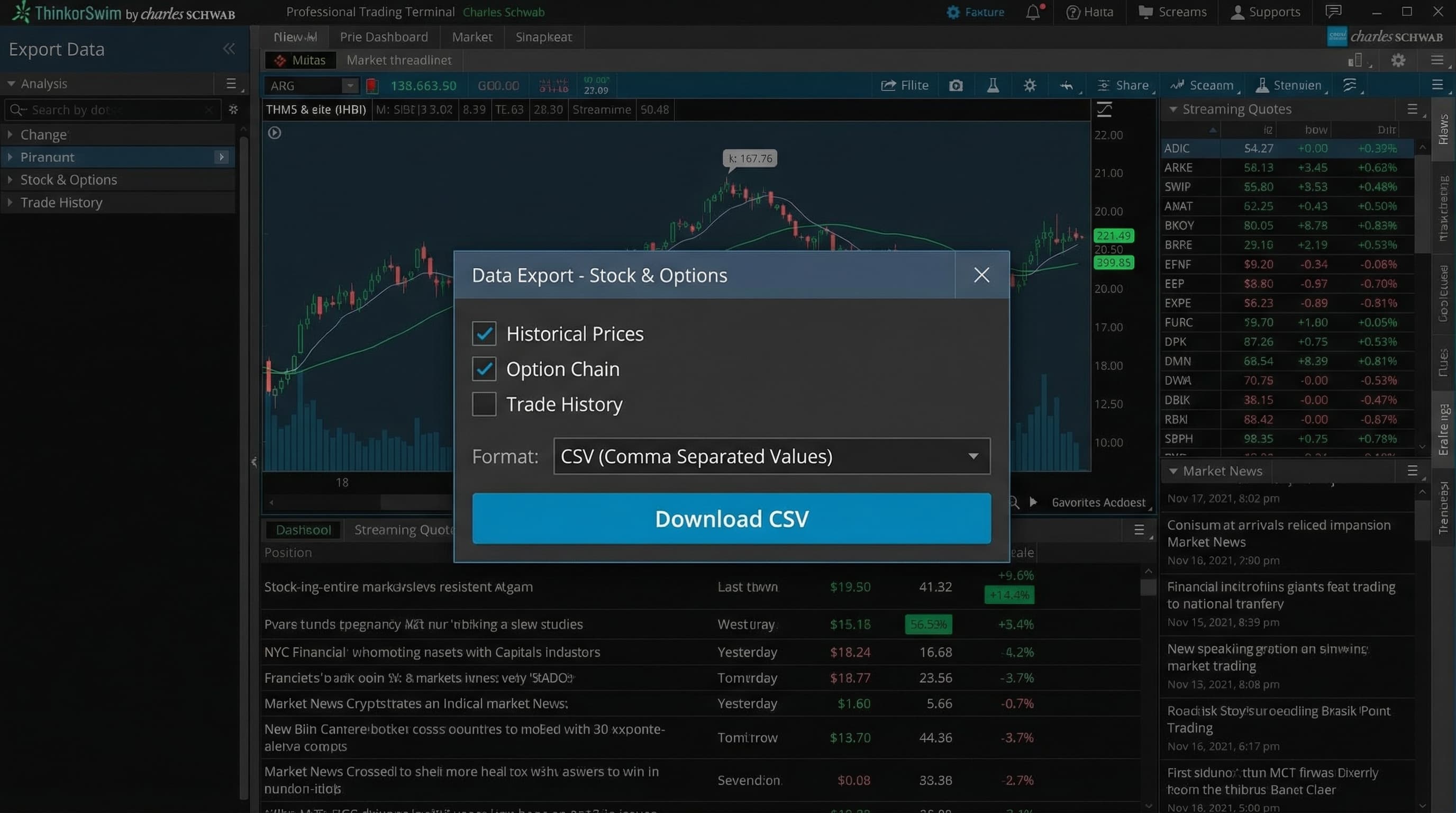
How to Export Trades from ThinkorSwim to a Trading Journal

Method 1: Export via Account Statement (Most Complete)

The Account Statement export is the most complete export ThinkorSwim offers. It includes every trade, fill, commission, and cash event in your account history. This is the best option if you want to import a complete trade history.

  • In ThinkorSwim desktop, go to Monitor → Account Statement
  • Set the date range you want to export (up to 3 years available)
  • Click the export icon (top right, looks like a page with an arrow) → Export to file
  • Choose CSV format — this creates a file with all trade and transaction data
  • Note: the export includes all account activity including dividends, interest, and cash transfers — your journal importer will need to filter to trades only

Method 2: Trade History Export (Trades Only)

If you only want trade fills without account-level transactions, use the Trade History export. This is cleaner for journal import purposes.

  • In ThinkorSwim desktop, go to Monitor → Trade History
  • Set your date range and filter by product type if needed (Equity, Option, Futures)
  • Right-click anywhere in the trade list → Export to CSV
  • The resulting file contains: symbol, action (BUY/SELL), quantity, price, time, and commission
  • For options: each leg of a spread exports as a separate line — your journal needs to be able to group multi-leg trades

Method 3: Performance Report (P&L Summary)

For a P&L-focused view rather than individual fills, ThinkorSwim's Performance Report summarizes completed trade outcomes. This is useful if you are importing to a journal that works with closed-trade P&L rather than individual fills.

  • Go to Analyze → Performance Report in ThinkorSwim desktop
  • Set date range and group by: instrument type, date, or symbol
  • Export via the same CSV export icon in the top right
  • This format shows realized P&L per position rather than per fill — better for single-entry journal imports
  • Note: the Performance Report does not show intraday trade timing — use Trade History if you need entry/exit times

How to Import ThinkorSwim Data into Tiltless

Tiltless supports direct import of ThinkorSwim account statement and trade history CSV files. The importer automatically maps ThinkorSwim's column format to Tiltless's trade schema, groups multi-leg options spreads, and normalizes symbols across asset classes.

  • Go to Connections → Import → ThinkorSwim in your Tiltless dashboard
  • Upload your Account Statement or Trade History CSV file
  • Tiltless parses the file and shows a preview of detected trades before finalizing import
  • Multi-leg spreads are automatically grouped by time-proximity and symbol
  • After import, Edge Lab runs behavioral analysis automatically — results appear in your next session briefing

What to Analyze After You Import ThinkorSwim Data

Importing trade data is step one. The value comes from the analysis. Most ThinkorSwim traders who import their data into a behavioral journal find patterns they could not see from inside the platform itself, because ThinkorSwim's analytics are position-centric rather than behavior-centric.

  • What is your win rate on the first trade after a stop-out? If it is materially lower than your baseline, you have a revenge trade pattern.
  • What does your P&L look like in the last 30 minutes of your session compared to your session average? Late-session quality is the most common hidden drag on performance.
  • How does your performance change after 3+ losing trades in a row? This shows your drawdown response behavior.
  • What is your options P&L by setup type? Setup-type breakdown often reveals where edge is actually concentrated.

Related Resources

FAQ

?Does ThinkorSwim export work with Charles Schwab accounts?

Yes. Following the TD Ameritrade / Schwab merger, ThinkorSwim is now the primary trading platform for Schwab clients. The export process is identical — the Account Statement and Trade History exports work the same way on the Schwab-integrated ThinkorSwim platform. All historical trade data is available in your ThinkorSwim statement history.

?Can I export options spreads from ThinkorSwim?

Yes, but spreads export as individual legs, not as grouped multi-leg positions. The Account Statement and Trade History CSV files will show each buy and sell leg separately. When you import into Tiltless, the importer automatically groups legs into spreads based on time-proximity, symbol, and expiry. You can also manually group trades in the importer preview if auto-grouping does not match your intended position.

?How far back does ThinkorSwim trade history go?

ThinkorSwim typically retains up to 7 years of account statement history within the platform. The Trade History export is typically limited to the past 3 years. For older data, contact Schwab support to request a historical account statement — they can provide full account history back to account opening in most cases.

?Does Tiltless support futures trades from ThinkorSwim?

Yes. ThinkorSwim is one of the most popular futures platforms, and Tiltless fully supports futures trade import from ThinkorSwim exports. Futures trades are normalized to include the contract multiplier in P&L calculations. /ES, /NQ, /CL, and other CME futures are all supported.

Import Your ThinkorSwim Trades — Free

Upload your ThinkorSwim account statement and Tiltless automatically runs behavioral analysis on your trade history. Find the patterns your P&L report does not show.

How to Export Trades from ThinkorSwim to a Trading Journal | Tiltless